
How to Set Up IPTV on AVOV TV Online: The Complete Step-by-Step Guide
 Introduction to IPTV on AVOV Devices
Internet Protocol Television (IPTV) has transformed how we consume entertainment by delivering live TV channels, movies, and on-demand content directly over the internet. For users of AVOV TV Online devices, setting up IPTV correctly ensures a seamless, high-quality viewing experience with minimal buffering and maximum performance.
In this guide, we provide a complete, precise, and optimized process to configure IPTV on AVOV devices efficiently. Whether you are a beginner or experienced user, this walkthrough ensures you achieve optimal streaming performance, stability, and usability.
What You Need Before Setup
Before starting, ensure you have the following essentials ready:
- Stable high-speed internet connection (minimum 15 Mbps recommended)
- Active IPTV subscription with M3U URL or portal credentials
- AVOV TV Online device connected to your TV
- Ethernet cable (recommended) for better stability over Wi-Fi
- Updated firmware on your AVOV device
Having these prepared avoids interruptions during installation and ensures a smooth configuration process.
Step 1: Connect and Prepare Your AVOV Device
Begin by properly setting up your AVOV device:
- Connect the AVOV box to your TV using an HDMI cable
- Power on the device and ensure it boots correctly
- Connect to the internet:
- Use Ethernet for maximum stability
- Or configure Wi-Fi via settings
- Navigate to Settings → System Update and ensure the firmware is up to date
A fully updated system significantly improves IPTV compatibility and playback performance.
Step 2: Install the IPTV Application
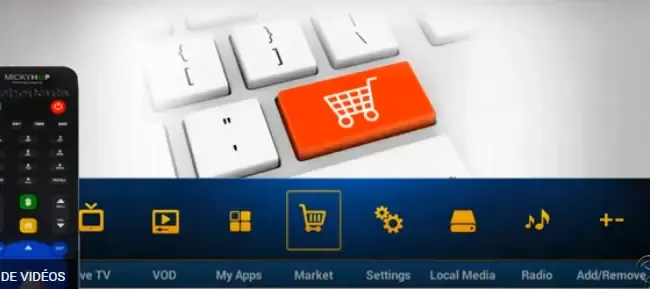
AVOV devices typically support IPTV through dedicated apps such as:
- TV Online (built-in application)
- IPTV Smarters
- Other compatible IPTV players
To install:
- Open the App Store on your AVOV device
- Search for your preferred IPTV player
- Click Install and wait for completion
- Launch the application
Choosing a reliable IPTV player ensures better channel loading speed and interface responsiveness.
Step 3: Add IPTV Credentials (Portal or M3U URL)
Once the app is installed, configure your IPTV subscription:
Option A: Using Portal URL (Recommended)
- Open the IPTV app
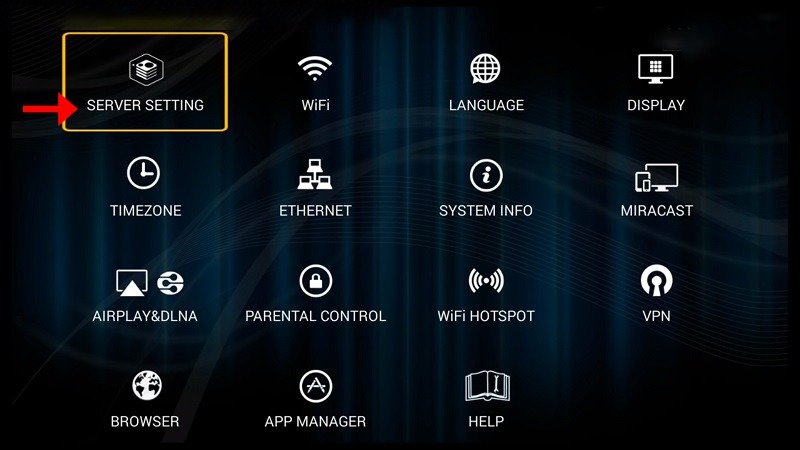
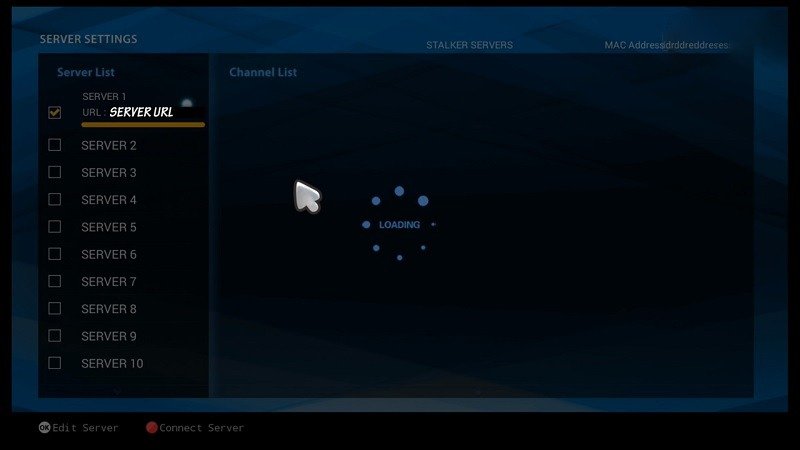
- Navigate to Settings → Server Configuration
- Enter:
- Portal URL provided by your IPTV service
- Username and Password (if required)
- Save and restart the app
Option B: Using M3U Playlist
- Select Add Playlist
- Enter your M3U URL
- Confirm and allow the system to load channels
Portal setup is generally faster and more stable compared to M3U playlists.
Step 4: Load Channels and Content
After adding credentials:
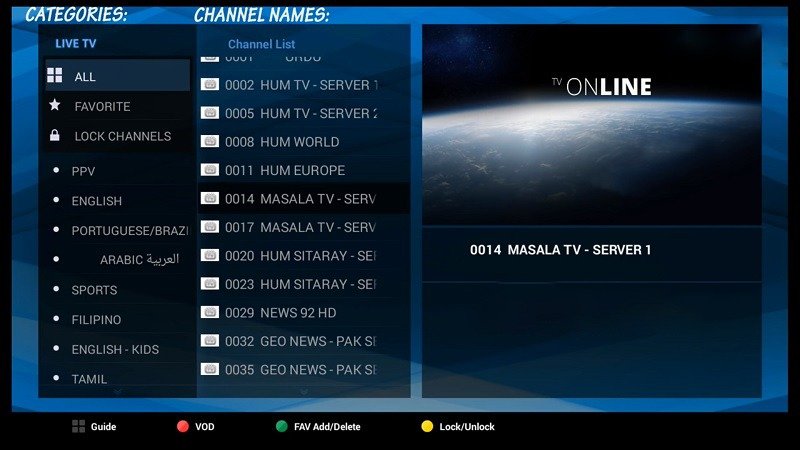
- The system will automatically download channel lists
- Categories such as Live TV, Movies, Series, and Sports will appear
- Wait until the loading process completes fully
Do not interrupt this step, as incomplete loading may cause missing channels or errors.
Step 5: Optimize IPTV Performance on AVOV
To achieve buffer-free streaming, apply these optimizations:
Use Wired Connection
- Ethernet reduces latency and packet loss
- Ensures consistent bandwidth
Adjust Buffer Settings
- Navigate to player settings
- Increase buffer size for smoother playback
Close Background Apps
- Free up memory and processing power
- Prevent lag or freezing
Restart Device Regularly
- Clears cache and temporary files
- Improves long-term performance
Optimization is critical for delivering high-quality HD and 4K streams without interruptions.
Step 6: Configure EPG (TV Guide)
An Electronic Program Guide (EPG) enhances usability:
- Go to Settings → EPG Configuration
- Enter the EPG URL provided by your IPTV provider
- Refresh the guide
This allows you to:
- View current and upcoming programs
- Navigate channels more efficiently
- Improve overall user experience
Step 7: Troubleshooting Common IPTV Issues
Even with proper setup, some issues may occur. Here are direct solutions:
Buffering or Freezing
- Check internet speed
- Switch to Ethernet connection
- Restart router and device
Channels Not Loading
- Verify M3U or portal URL
- Refresh playlist
- Re-login to IPTV account
App Crashing
- Clear cache
- Reinstall the IPTV application
- Update firmware
No EPG Data
- Re-enter EPG URL
- Refresh guide manually
Consistent maintenance ensures uninterrupted streaming performance.
Advanced Tips for Power Users
To maximize your IPTV experience on AVOV:
Use External Media Players
- Improve decoding performance
- Support more formats
Enable Hardware Acceleration
- Enhances playback quality
- Reduces CPU load
Organize Favorites
- Save frequently watched channels
- Speed up navigation
Use VPN (Optional)
- Improve privacy
- Bypass ISP throttling
Security and Best Practices
Maintaining security is essential when using IPTV services:
- Avoid sharing your IPTV credentials
- Use trusted IPTV providers only
- Keep your device firmware updated
- Use secure internet connections
A secure setup protects both your device and personal data.
Benefits of Using IPTV on AVOV Devices
AVOV devices provide several advantages:
- High compatibility with IPTV services
- Smooth interface and easy navigation
- Support for HD and 4K streaming
- Stable performance with proper setup
These features make AVOV a strong choice for IPTV users seeking reliability and flexibility.
Conclusion
Setting up IPTV on AVOV TV Online is a straightforward yet highly customizable process. By following this structured approach, you can unlock thousands of live channels, on-demand content, and premium entertainment directly on your device.
A properly configured system ensures:
- Fast channel loading
- Minimal buffering
- Enhanced viewing experience
With the right setup and optimization, AVOV becomes a powerful IPTV streaming solution capable of delivering consistent, high-quality entertainment.