
Introduction to IPTV on Google TV
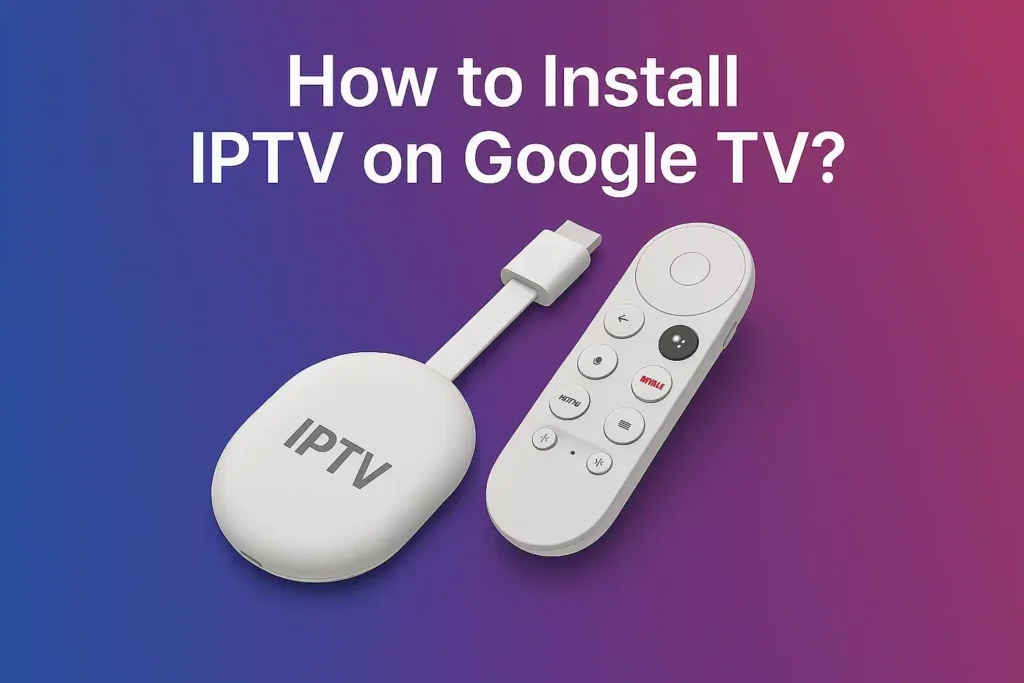
We live in a digital era where streaming convenience and flexibility define entertainment. IPTV (Internet Protocol Television) has rapidly become the preferred choice for users who want access to live TV, on-demand content, and premium channels without traditional cable subscriptions. When combined with Google TV, the experience becomes even more powerful, delivering a seamless interface, voice control, and access to countless applications.
In this comprehensive guide, we walk through exactly how to install IPTV on Google TV, ensuring a smooth setup, optimized performance, and uninterrupted streaming.
What You Need Before Installing IPTV on Google TV
Before beginning the installation process, we ensure everything is properly prepared:
- A Google TV device (Chromecast with Google TV or built-in Google TV)
- A stable internet connection (minimum 15 Mbps recommended)
- An active IPTV subscription with:
- M3U URL or Xtream Codes API
- A reliable IPTV player app
- A Google account linked to your device
Preparation ensures a fast, error-free installation process.
Best IPTV Apps for Google TV
Choosing the right IPTV player is essential for performance and usability. We recommend the following high-performance IPTV apps:
1. IPTV Smarters Pro
- User-friendly interface
- Supports M3U playlists and Xtream Codes
- Built-in video player with EPG support
2. TiviMate IPTV Player
- Premium interface with advanced features
- Multi-playlist support
- Excellent EPG integration
3. XCIPTV Player
- Customizable layout
- Built-in media player
- Smooth navigation and fast loading
Each of these apps provides high compatibility with Google TV, ensuring optimal playback and minimal buffering.
Step-by-Step Guide: Install IPTV on Google TV
Step 1: Access the Google Play Store
We begin by navigating to the Google Play Store directly from the Google TV home screen:
- Go to Apps
- Select Search for Apps
- Use voice search or keyboard input
Step 2: Search for IPTV App
Enter the name of your preferred IPTV player:
- “IPTV Smarters Pro”
- “TiviMate”
- “XCIPTV”
Select the app from the results and click Install.
Step 3: Launch the IPTV App
Once installed:
- Open the app directly
- Accept necessary permissions
- Proceed to the login interface
Step 4: Add IPTV Playlist
Depending on your subscription, we configure access in one of two ways:
Option A: M3U URL
- Select “Load Your Playlist or File URL”
- Enter your M3U link
- Assign a playlist name
Option B: Xtream Codes API
- Enter:
- Username
- Password
- Server URL
Click Add User to proceed.
Step 5: Load Channels and Start Streaming
After successful login:
- The app will automatically load channels
- Navigate through:
- Live TV
- Movies
- Series
- Select any content and begin streaming instantly
Optimizing IPTV Performance on Google TV
To ensure the best streaming experience, we apply the following optimizations:
Use a High-Speed Internet Connection
- Minimum 15 Mbps for HD
- 25+ Mbps for 4K streaming
Enable Hardware Acceleration
- Improves playback performance
- Reduces buffering issues
Use Ethernet Instead of Wi-Fi
- Provides more stable connectivity
- Reduces latency and interruptions
Clear Cache Regularly
- Prevents app slowdown
- Maintains smooth navigation
How to Install IPTV Using Downloader (Alternative Method)
Some IPTV apps are not available on the Play Store. In such cases, we use the Downloader app.
Step 1: Install Downloader
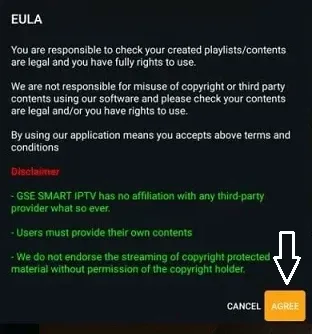
- Search “Downloader” in Play Store
- Install and open it
Step 2: Enable Unknown Sources
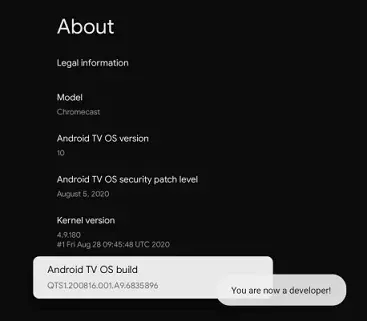
- Go to Settings → Security & Restrictions
- Enable installation from unknown sources for Downloader
Step 3: Enter APK URL
- Input the IPTV app APK link
- Download and install manually
Step 4: Launch and Configure
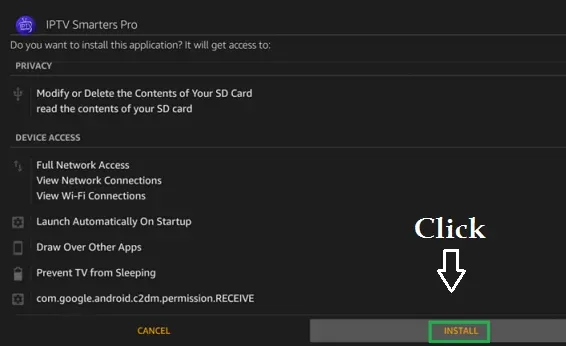
- Open the app
- Enter IPTV credentials
- Start streaming
Common Issues and Fixes
Buffering Problems
- Switch to a faster internet connection
- Restart router
- Use VPN if ISP throttling is suspected
Login Errors
- Double-check credentials
- Verify server URL accuracy
App Crashes
- Clear cache and data
- Reinstall the app
Channels Not Loading
- Refresh playlist
- Contact IPTV provider for updated links
Benefits of Using IPTV on Google TV
We unlock a wide range of advantages:
- Unlimited content access (live TV, movies, sports)
- No long-term contracts
- Affordable subscription options
- Multi-device compatibility
- High-definition streaming
Google TV enhances IPTV by offering voice control, recommendations, and smooth navigation, making it a powerful entertainment hub.
Security and Privacy Considerations
For a secure IPTV experience:
- Use a trusted IPTV provider
- Avoid free, unreliable services
- Consider using a VPN for privacy
- Keep apps updated to latest versions
Security ensures safe streaming without interruptions or risks.
Advanced Features to Explore
Modern IPTV apps offer powerful features:
Electronic Program Guide (EPG)
- View schedules for live channels
- Plan your viewing ahead
Catch-Up TV
- Watch previously aired programs
Multi-Screen Viewing
- Watch multiple channels simultaneously
Recording Options
- Save your favorite shows locally
These features elevate IPTV from simple streaming to a complete entertainment system.
Conclusion
Installing IPTV on Google TV is a straightforward yet powerful upgrade to your home entertainment system. By following this guide, we ensure a seamless setup, optimal performance, and access to unlimited content at your fingertips. With the right IPTV player, a reliable subscription, and proper configuration, Google TV transforms into a fully-featured streaming powerhouse.