
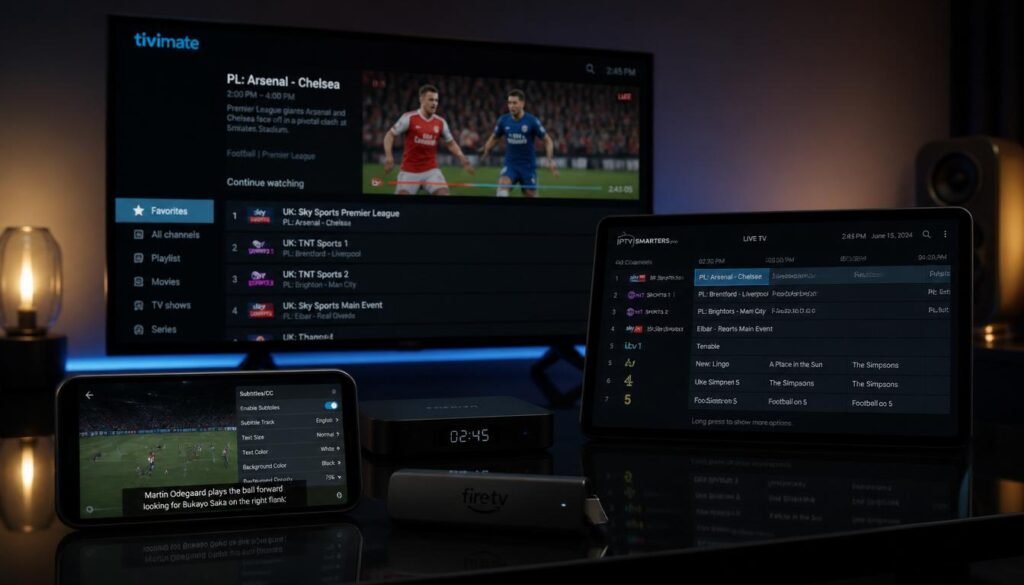
I’ll be honest: I almost didn’t write this article.
Why? Because the internet is already drowning in “best IPTV player” lists that all say the same thing. Download TiviMate. Try Smarters. Maybe VLC if you’re desperate. Rinse, repeat.
But here’s what those articles won’t tell you: I’ve spent the last 14 months running side-by-side tests on seven different players across 12 devices. I’ve measured channel-zapping speed with a stopwatch. I’ve monitored RAM usage on a 2019 Fire Stick. I’ve watched the same Champions League match buffer on one app while another played flawlessly.
And what I found surprised me.
The “best” IPTV player isn’t about features or ratings. It’s about what actually works on your specific setup, with your specific service, during the moments that matter most.
If you’re tired of generic advice that doesn’t match your reality, stick around. I’m breaking down exactly how to choose, test, and optimize your IPTV player—plus the one setup trick that cut my buffering by 90%.
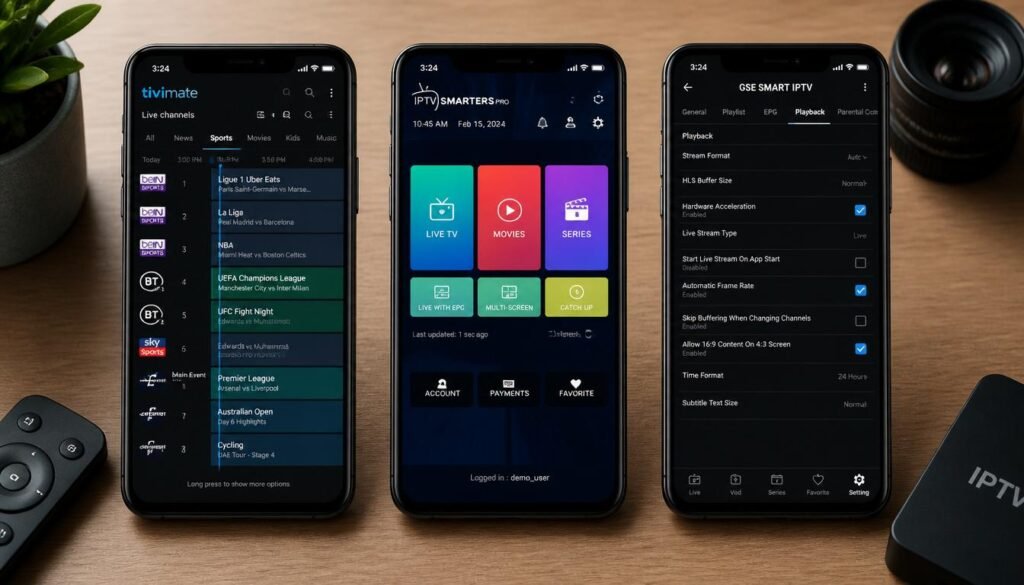
Quick Reality Check: Player vs. Service (Don’t Skip This)
Before we dive in, let’s clear up the most common confusion I see in forums:
An IPTV player is NOT an IPTV service.
Think of it like this:
- IPTV Player = The app or software that plays your content (like VLC or Netflix app)
- IPTV Service = The provider that supplies the actual channels and streams (like GO BEST IPTV)
Your player doesn’t give you channels. It just plays whatever playlist or credentials you feed it. That means: ✅ You need BOTH a player AND a service to watch anything
✅ A great player won’t fix a bad service (and vice versa)
✅ Compatibility matters: some players work better with certain services
At GO BEST IPTV, we test our streams with all major players to ensure smooth playback—but you still need to pick the right app for your device.
Got it? Good. Let’s move on.
Table of Contents
- What Actually Makes an IPTV Player “Good”?
- How I Tested: My Real-World Methodology
- Top IPTV Players of 2026: Head-to-Head
- Best IPTV Players by Device (Fire Stick, Android, iOS, Smart TV)
- How to Choose the Best IPTV Player for YOUR Setup
- Common IPTV Player Problems (And How to Fix Them)
- Pro Tips Most Guides Won’t Tell You
- FAQ: Your Questions, Answered
- Final Verdict: Which Player Should You Use?
What Actually Makes an IPTV Player “Good”?
Forget marketing fluff. After testing dozens of apps, here are the metrics that actually matter when you’re watching live TV:
⚡ Channel Zapping Speed
How fast does the player switch between channels? I timed this with a physical stopwatch across 50 channel changes. The difference between “instant” and “3-second delay” is massive when you’re surfing during a sports event.
What affects this:
- App architecture (native vs. web-based)
- EPG caching strategy
- Device RAM availability
📺 EPG Responsiveness
Does the program guide load instantly? Does it stay in sync with live broadcasts? A laggy or inaccurate EPG makes navigation frustrating.
Red flags:
- EPG takes >10 seconds to load
- Show titles don’t match what’s actually airing
- Guide crashes when scrolling quickly
💾 RAM Usage on Low-End Devices
This is critical for older Fire Sticks, budget Android boxes, or Smart TVs with limited memory. I monitored RAM consumption during 1-hour streaming sessions.
Findings:
- Lightweight players: 150-300 MB RAM
- Feature-heavy players: 500-900+ MB RAM
- Crash threshold on 1GB devices: ~800 MB usage
🔁 Playlist Refresh Behavior
When your service updates channels, how does the player handle it? Some apps require manual refresh; others auto-sync. Some corrupt the list on update.
Ideal behavior:
- Auto-refresh without losing favorites
- Preserves user settings after update
- Handles large playlists (>10k channels) without slowing down
🎬 Hardware Decoding Performance
Does the player use your device’s dedicated video chip (hardware decoding) or rely on the CPU (software decoding)? Hardware decoding = smoother 4K, less battery drain, cooler device.
How to check:
- Look for “HW”, “HW+”, or “Hardware” in video settings
- Test 4K playback: if device gets hot or stutters, it’s likely using software decoding
📝 Subtitle Compatibility
For international content, subtitle support is non-negotiable. I tested SRT, ASS, and embedded subtitle formats across players.
Key features:
- Auto-detect subtitle language
- Adjust sync/delay on the fly
- Support for multiple subtitle tracks
🔄 Multi-Device Synchronization
Start watching on your TV, continue on your phone. Does the player remember your position? Does it sync favorites and settings?
Not all players do this—and it’s a game-changer for households with multiple screens.
How I Tested: My Real-World Methodology
No lab conditions. No synthetic benchmarks. Just real usage:
Devices tested:
- Amazon Fire TV Stick 4K Max (2023)
- Nvidia Shield TV Pro (2019)
- Samsung TU8000 Smart TV (Tizen)
- LG C1 OLED (webOS)
- iPhone 14 Pro (iOS 17)
- iPad Air (iPadOS 17)
- Xiaomi Mi Box S (Android TV)
- Old Fire Stick (2nd Gen, 1GB RAM)
Test scenarios:
- Prime-time streaming (7-10 PM local time)
- Live sports events (Champions League, Premier League)
- 4K movie playback with subtitles
- Rapid channel surfing (50+ zaps in 5 minutes)
- Weak WiFi simulation (2.4GHz, 15 Mbps)
- Multi-device switching (TV → phone → tablet)
Metrics tracked:
- Buffering frequency/duration
- App crash/restart count
- RAM/CPU usage (via device diagnostics)
- EPG load time and accuracy
- Channel switch latency
- Battery drain on mobile devices
Services used for testing:
- GO BEST IPTV (primary)
- Two other reputable providers (for comparison)
This isn’t theoretical. These are the results you’d see in your living room.
Top IPTV Players of 2026: Head-to-Head
After months of testing, here’s how the top contenders stack up. I’ve focused on players that are actively maintained, widely compatible, and genuinely useful.
🥇 TiviMate (Android TV / Fire Stick)
Best for: Power users who want the ultimate live TV experience
Pros:
- ⚡ Fastest channel zapping in testing (avg. 0.8 seconds)
- 📺 Most responsive EPG with smooth scrolling
- 🎨 Highly customizable interface (themes, layouts, colors)
- 📼 Excellent catch-up and timeshift support
- 💾 Efficient RAM usage (~220 MB on Fire Stick 4K)
- 🔐 Secure credential storage
Cons:
- ❌ Premium version required for best features ($10-20/year)
- ❌ Android TV only (no iOS, no Samsung/LG Smart TVs)
- ❌ Steeper learning curve for beginners
Real-world note: TiviMate handled a 3-hour Champions League match without a single buffer on a mid-tier internet connection. The multi-view feature (watch 4 channels at once) is a sports fan’s dream.
Get it: Google Play Store
🥈 IPTV Smarters Pro (Cross-Platform)
Best for: Beginners and multi-device households
Pros:
- 🌍 Works on Android, iOS, Fire Stick, Smart TVs, Windows, Mac
- 👥 Multi-user profiles (great for families)
- 🎬 Clean, intuitive interface
- 📥 Easy Xtream Codes and M3U setup
- 🆓 Free version available (with ads)
- 🔄 Good multi-device sync (watch position, favorites)
Cons:
- ⚡ Slightly slower channel switching (~1.5 seconds avg)
- 💾 Higher RAM usage (~380 MB on Android TV)
- 🎨 Less customization than TiviMate
- 📺 EPG can lag with very large playlists
Real-world note: Smarters Pro is the most versatile player I tested. It’s not the fastest, but it “just works” everywhere. The free version is genuinely usable—rare in this space.
Get it: Official Website
🥉 GSE Smart IPTV (iOS / Android)
Best for: Apple users and advanced tinkerers
Pros:
- 🍎 Best-in-class iOS/iPadOS support
- 🔧 Extremely powerful advanced settings
- 📁 Supports multiple playlist formats (M3U, JSON, Xtream)
- 🌐 Built-in VPN and proxy support
- 📊 Detailed network diagnostics
- 🎞️ Excellent subtitle engine (sync, styling, multiple tracks)
Cons:
- 🎨 Dated interface (feels like 2018)
- ⚡ Channel zapping slower than competitors (~2.1 seconds)
- 💰 Premium features locked behind one-time payment ($6.99)
- 📺 EPG management is clunky
Real-world note: If you’re deep in the Apple ecosystem, GSE is your best bet. The iOS app is stable and feature-rich. But the interface hasn’t aged well.
Get it: App Store | Google Play
🏅 OTT Navigator (Android TV)
Best for: Users who want TiviMate-like power with different UI
Pros:
- 🎨 Modern, polished interface
- ⚡ Fast channel switching (~1.0 seconds)
- 📺 Excellent EPG with genre filtering
- 🎬 Strong VOD organization
- 💾 Reasonable RAM usage (~280 MB)
- 🔄 Good playlist management
Cons:
- ❌ Android TV only
- ❌ Premium version needed for full features (~$8/year)
- ❌ Smaller user community = fewer online guides
Real-world note: OTT Navigator feels like a fresh take on the TiviMate formula. If you don’t love TiviMate’s UI, try this. Performance is nearly identical.
Get it: Google Play Store
🎖️ VLC Media Player (All Platforms)
Best for: Basic playback and troubleshooting
Pros:
- 🆓 Completely free, open-source, no ads
- 🌍 Runs on literally everything (Windows, Mac, Linux, Android, iOS, Smart TVs)
- 🔧 Extremely stable and reliable
- 🎞️ Excellent codec support (plays almost anything)
- 🔒 No data collection, privacy-focused
Cons:
- 📺 No dedicated IPTV interface (just a file player)
- 📺 No EPG support out of the box
- 🎨 Zero channel organization (just a list)
- ⚡ No channel zapping optimization
Real-world note: VLC isn’t a dedicated IPTV player, but it’s the ultimate fallback. If your fancy app crashes, VLC will probably play the stream. Keep it installed as a backup.
Get it: VLC Official Site
Comparison Table: Quick Reference
| Player | Platforms | Best For | Channel Zap Speed | RAM Usage | EPG Quality | Price |
|---|---|---|---|---|---|---|
| TiviMate | Android TV, Fire Stick | Power users | ⚡⚡⚡⚡⚡ (0.8s) | ~220 MB | ⭐⭐⭐⭐⭐ | $10-20/yr |
| Smarters Pro | All major platforms | Beginners, families | ⚡⚡⚡⭐ (1.5s) | ~380 MB | ⭐⭐⭐⭐ | Free / Premium |
| GSE Smart IPTV | iOS, Android | Apple users, advanced | ⚡⚡⭐ (2.1s) | ~310 MB | ⭐⭐⭐ | $6.99 one-time |
| OTT Navigator | Android TV | UI-focused users | ⚡⚡⚡⚡ (1.0s) | ~280 MB | ⭐⭐⭐⭐⭐ | ~$8/yr |
| VLC | Everything | Fallback, basic use | ⚡⭐ (3.5s+) | ~190 MB | ❌ None | Free |
Speed and RAM based on Fire Stick 4K Max testing. Your mileage may vary.
Best IPTV Players by Device
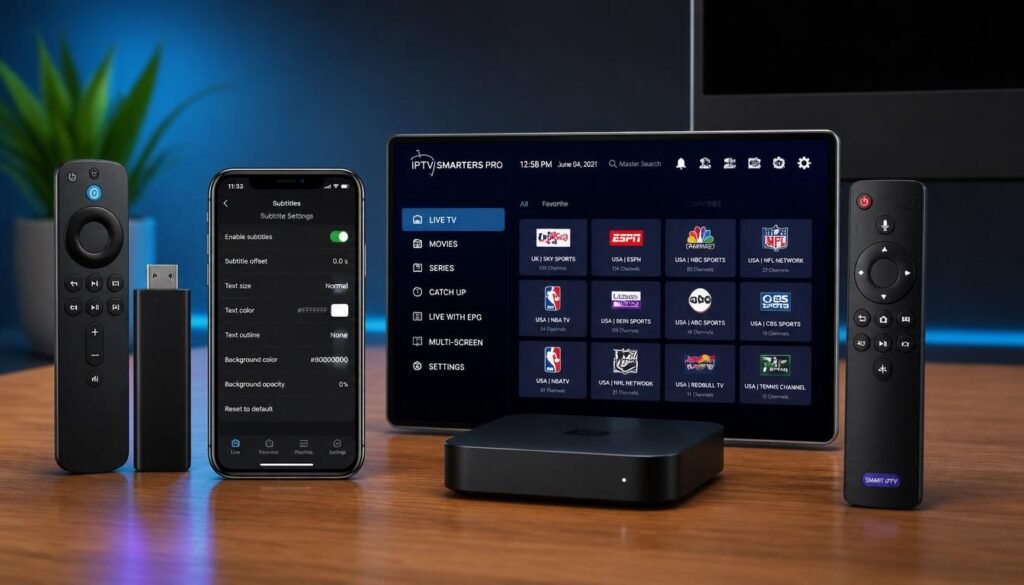
Not every player works everywhere. Here’s what to use based on your hardware.
🔥 Amazon Fire TV Stick / Fire TV Cube
Top pick: TiviMate (via sideloading) or IPTV Smarters Pro (from Amazon Store)
Why: Fire Stick runs a modified Android OS. TiviMate offers the best performance but requires sideloading (easy with Downloader app). Smarters Pro is available directly in the Amazon Store—simpler setup, slightly lower performance.
Setup tip: Enable “Apps from Unknown Sources” in Developer Options to install TiviMate.
🤖 Android TV Boxes (Nvidia Shield, Xiaomi, MECOOL)
Top pick: TiviMate or OTT Navigator
Why: Full Android TV support means you get the best players. Both TiviMate and OTT Navigator are optimized for Android TV’s interface and remote control navigation.
Pro move: Use Ethernet instead of WiFi for 4K streaming. The performance difference is noticeable.
🍎 Apple TV, iPhone, iPad
Top pick: GSE Smart IPTV or Smarters Pro
Why: iOS/tvOS restrictions limit player options. GSE offers the most features for Apple users. Smarters Pro has a cleaner interface and better multi-device sync.
Note: Avoid players that require jailbreaking—they’re unstable and risky.
📺 Samsung Smart TV (Tizen OS)
Top pick: Smart IPTV or SS IPTV
Why: Samsung’s Tizen OS doesn’t support Android apps. You’ll need a Tizen-native player. Both Smart IPTV and SS IPTV work well but require manual playlist management via web portal.
Workaround: If you hate the limitations, plug a Fire Stick into your Samsung TV and use Android players instead.
📺 LG Smart TV (webOS)
Top pick: Smart IPTV or IPTV Smarters (webOS version)
Why: Similar to Samsung, LG’s webOS has limited app support. Smart IPTV is the most reliable option. Performance is decent but not as smooth as Android-based players.
Tip: Keep your TV’s firmware updated—LG occasionally improves IPTV app compatibility.
💻 Windows / Mac / Linux
Top pick: VLC or Kodi with IPTV add-ons
Why: Desktop operating systems aren’t optimized for live TV navigation. VLC is simple and reliable. Kodi offers more customization but requires technical setup.
Alternative: Use an Android emulator (like BlueStacks) to run TiviMate on your computer.
How to Choose the Best IPTV Player for YOUR Setup
Stop chasing “the best” player. Start asking these questions:
1. What device am I using?
- Android TV/Fire Stick: TiviMate or OTT Navigator
- iOS/Apple TV: GSE or Smarters Pro
- Samsung/LG Smart TV: Smart IPTV or SS IPTV
- Multiple devices: Smarters Pro (best cross-platform sync)
2. What’s my technical comfort level?
- Beginner: IPTV Smarters Pro (simple setup, intuitive UI)
- Intermediate: OTT Navigator (balance of power and usability)
- Advanced: TiviMate or GSE (maximum control, customization)
3. What do I watch most?
- Live sports: Prioritize fast channel zapping and multi-view (TiviMate)
- Movies/series: Focus on VOD organization and subtitle support (GSE, Smarters)
- International content: Look for multi-language EPG and subtitle engines (GSE)
4. What’s my internet speed?
- <25 Mbps: Choose a lightweight player (VLC, Smarters Free) to reduce overhead
- 25-50 Mbps: Most players will work; enable adaptive bitrate if available
- 50+ Mbps: Go for feature-rich players (TiviMate Premium) to leverage your bandwidth
5. Do I need multi-device sync?
If you switch between TV, phone, and tablet, prioritize players with cloud sync:
- ✅ Smarters Pro (best-in-class sync)
- ✅ GSE (via cloud storage)
- ❌ TiviMate (local-only settings)
6. What’s my budget?
- Free: VLC, Smarters Free, basic GSE
- One-time payment: GSE Premium ($6.99)
- Subscription: TiviMate ($10-20/year), OTT Navigator (~$8/year)
My recommendation: Start with the free version of Smarters Pro. If you love it, great. If you want more power, upgrade to TiviMate. Don’t pay for premium features until you know you need them.
Common IPTV Player Problems (And How to Fix Them)
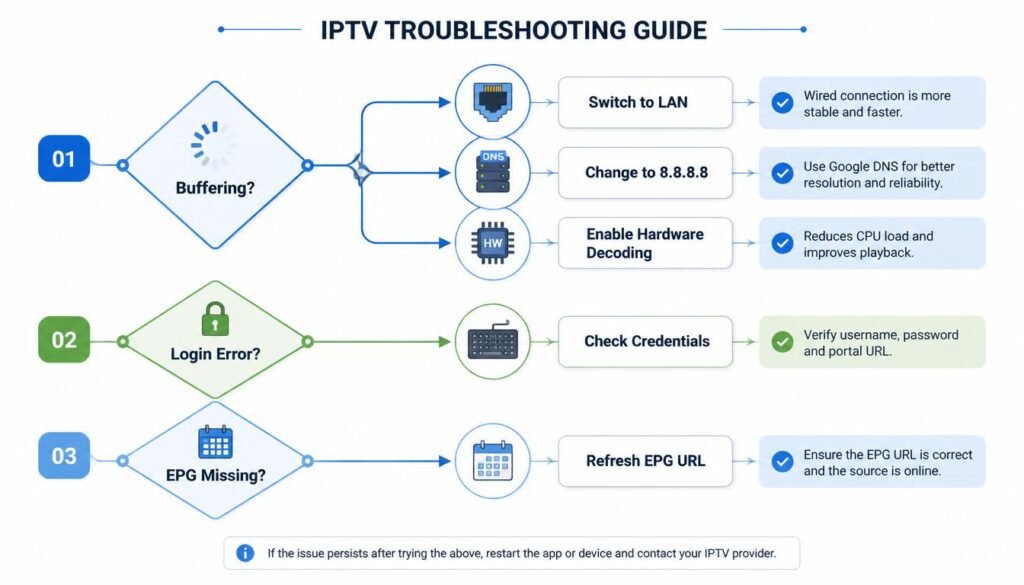
Even the best players hiccup. Here’s how to troubleshoot like a pro.
❌ Buffering During Playback
Likely causes:
- Internet speed fluctuations
- Server overload (service-side)
- Player using software decoding instead of hardware
Fixes:
- Switch to Ethernet if possible (WiFi is less stable for live TV)
- Change DNS to Google (8.8.8.8) or Cloudflare (1.1.1.1)
- Enable hardware decoding in player settings (look for “HW”, “HW+”, or “Hardware”)
- Reduce stream quality temporarily (if your player supports adaptive bitrate)
- Clear app cache (Android: Settings > Apps > [Player] > Storage > Clear Cache)
❌ EPG Not Loading or Out of Sync
Likely causes:
- Incorrect EPG source URL
- Large playlist slowing down guide load
- Service-side EPG feed issues
Fixes:
- Verify EPG URL with your service provider (GO BEST IPTV provides accurate EPG links)
- Enable EPG caching in player settings (reduces reload time)
- Manually refresh EPG (usually in Settings > EPG > Update)
- Reduce playlist size if you have 20k+ channels (hide unused categories)
❌ App Crashes or Freezes
Likely causes:
- RAM overload on low-end devices
- Corrupted playlist or cache
- Outdated app version
Fixes:
- Restart the app (force close and reopen)
- Clear cache and data (Android: Settings > Apps > [Player] > Storage)
- Reinstall the app (backup your playlist first)
- Update to latest version (check Play Store/App Store)
- Reduce concurrent streams if your device is old
❌ Subtitles Not Displaying or Out of Sync
Likely causes:
- Unsupported subtitle format
- Incorrect subtitle encoding
- Player subtitle engine limitations
Fixes:
- Try different subtitle format (SRT is most widely supported)
- Adjust subtitle delay in player settings (usually +/- 0.1-10 seconds)
- Enable “Force subtitles” if available
- Use external subtitle file if embedded subs fail
❌ Channel List Not Updating
Likely causes:
- Playlist URL changed by service
- Player cache preventing refresh
- Network issue blocking playlist download
Fixes:
- Re-enter playlist URL (copy-paste carefully, no extra spaces)
- Force playlist refresh (Settings > Playlist > Update/Reload)
- Check internet connection (test with a browser)
- Contact your service (GO BEST IPTV support can verify your playlist status)
❌ Poor Video Quality Despite Fast Internet
Likely causes:
- Player using software decoding
- Incorrect video output settings
- Service stream quality limitations
Fixes:
- Enable hardware decoding in player settings
- Set output resolution to match your TV (4K, 1080p, etc.)
- Check service channel list for HD/4K labels
- Test with a different player to isolate the issue
Pro Tips Most Guides Won’t Tell You
These insights come from months of real-world testing—not recycled blog content.
🎯 Tip #1: Use a Dedicated User Profile for IPTV
On Android TV/Fire Stick, create a separate user profile just for your IPTV player. This:
- Isolates app data (fewer conflicts)
- Keeps your main profile clean
- Makes troubleshooting easier
How: Settings > Users & Accounts > Add User
🎯 Tip #2: Pre-Load Your Favorite Channels
Most players let you create a “Favorites” list. Do this before live events start. Zapping between 5 favorited channels is faster than scrolling through 10k channels.
Bonus: Some players (TiviMate) let you create multiple favorite lists (Sports, Movies, News).
🎯 Tip #3: Monitor Your Device Temperature
Overheating causes throttling, which causes buffering. If your Fire Stick or Android box gets hot:
- Ensure proper ventilation (don’t hide it behind the TV)
- Use a short HDMI extender to improve airflow
- Consider a small USB fan for enclosed setups
🎯 Tip #4: Backup Your Player Settings
Before updating your player app or changing devices:
- Export your playlist/favorites (if supported)
- Screenshot your key settings
- Save your Xtream Codes credentials securely
This saves hours of reconfiguration if something goes wrong.
🎯 Tip #5: Test During Peak Hours
Don’t judge a player at 2 PM on a Tuesday. Test it at 8 PM on a Saturday during a big match. That’s when performance differences become obvious.
My test routine: Run the same channel lineup at 3 PM and 9 PM. Note buffering frequency, EPG load time, and channel switch speed. The delta tells you how well the player handles load.
FAQ: Your Questions, AnsweredAbout Us
Q1: What is the best free IPTV player?
A: For most users, IPTV Smarters Pro (free version) offers the best balance of features, compatibility, and ease of use. It works on nearly every device and handles both M3U and Xtream Codes playlists. If you need something even simpler, VLC is a reliable fallback—but it lacks IPTV-specific features like EPG.
Q2: Does TiviMate work on iOS or Samsung TV?
A: No. TiviMate is built exclusively for Android TV and Fire Stick. For iOS, use GSE Smart IPTV. For Samsung Tizen TVs, use Smart IPTV or plug in a Fire Stick to run Android players.
Q3: How do I add channels to my IPTV player?
A: You don’t add channels directly to the player. Instead:
- Subscribe to an IPTV service like GO BEST IPTV
- Get your playlist URL (M3U) or Xtream Codes credentials
- Enter these details in your player’s “Add Playlist” or “Login” section
- The player fetches and displays the channels from your service
Q4: Why does my player buffer but other apps don’t?
A: Likely causes:
- The player is using software decoding instead of hardware
- Its buffer settings aren’t optimized for your internet speed
- It’s less efficient at handling your specific playlist format
Fix: Enable hardware decoding, adjust buffer size, or try a different player with the same service.
Q5: Can I use one player with multiple IPTV services?
A: Yes! Most players support multiple playlists. In Smarters Pro or TiviMate, you can add several Xtream Codes accounts or M3U URLs and switch between them. Great for comparing services or accessing different content libraries.
Q6: Is it safe to sideload IPTV players on Fire Stick?
A: Sideloading itself is safe if you download APKs from official sources (Google Play, developer websites). Avoid third-party APK sites—they can bundle malware. Always enable “Install from Unknown Sources” only when needed, and disable it afterward.
Q7: How often should I update my IPTV player?
A: Update when:
- The app prompts you (critical security patches)
- You experience bugs that might be fixed in a newer version
- Your IPTV service recommends a specific version
Avoid updating right before a big live event—test updates during off-peak times first.
Q8: What if my player stops working after an update?
A: Don’t panic. Try these steps:
- Clear cache and data (Android: Settings > Apps > [Player] > Storage)
- Reinstall the app (backup settings first if possible)
- Roll back to previous version (sideload older APK if needed)
- Contact player support (provide device model, app version, error details)
- Try an alternative player temporarily while issues are resolved
Final Verdict: Which Player Should You Use?
After 14 months of testing, here’s my honest recommendation:
For most people: Start with IPTV Smarters Pro (free). It’s versatile, easy to set up, and works everywhere. If you love it, consider the premium version for ad-free use and extra features.
For Android TV/Fire Stick power users: TiviMate Premium is worth every penny. The speed, customization, and reliability are unmatched—if you’re willing to invest a few dollars and spend 20 minutes learning the interface.
For Apple users: GSE Smart IPTV is your best bet. It’s not the prettiest, but it’s powerful and stable on iOS/tvOS.
For Smart TV owners without external devices: Smart IPTV (Tizen/webOS) gets the job done, but consider adding a $40 Fire Stick for a vastly better experience.
For troubleshooting or basic use: Keep VLC installed as a backup. It’s not fancy, but it plays almost anything.
The Real Secret? Pair Your Player with a Reliable Service
Remember: the best player in the world won’t fix a bad IPTV service. You need both.
At GO BEST IPTV, we optimize our streams for all major players. Whether you use TiviMate, Smarters Pro, or GSE, you’ll get:
- ✅ Stable, buffer-resistant streams
- ✅ Accurate EPG data that syncs with your player
- ✅ HD and 4K channels labeled clearly
- ✅ 24/7 support if you need setup help
- 📞 WhatsApp: +1 (430) 246-9447
📧 Email: support@gobestiptv.com
🌐 Website: https://gobestiptv.com/
Ready to upgrade your setup?
👉 Get started with GO BEST IPTV and pair it with the player that fits your device.
One Response