
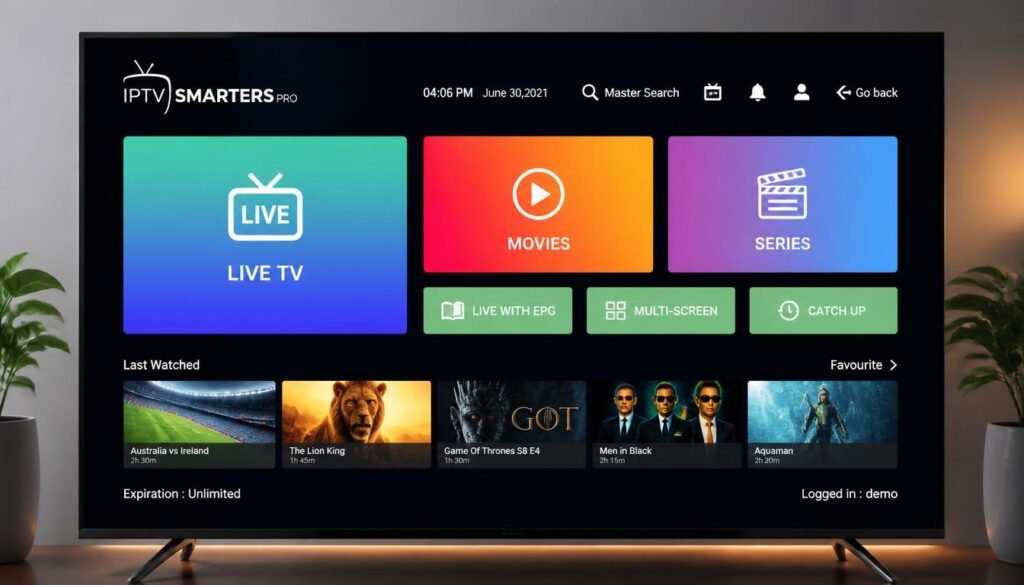
If you’ve been searching for the ultimate way to stream live TV, movies, and sports on your favorite devices, you’ve probably come across IPTV Smarters more than once. As we move through 2026, this powerful application continues to dominate the IPTV streaming landscape, offering users an unmatched combination of flexibility, performance, and ease of use.
Whether you’re a complete beginner trying to figure out how to cut the cord or a seasoned streamer looking to optimize your setup, this comprehensive guide covers everything you need to know about IPTV Smarters — from installation and configuration to troubleshooting and advanced features.
At GO BEST IPTV, we specialize in delivering premium IPTV subscriptions that work seamlessly with IPTV Smarters Pro and other leading applications. Our goal with this guide is simple: to give you a human-written, step-by-step resource that actually helps you get the most out of your streaming experience.
By the end of this article, you’ll know exactly how to install IPTV Smarters on Firestick, configure it on Android and Smart TVs, add your subscription details, and solve common problems — all while understanding why millions of users trust this app every single day.
Let’s dive in.
What Is IPTV Smarters?
IPTV Smarters is a versatile, user-friendly application designed to stream IPTV (Internet Protocol Television) content across multiple devices. Unlike traditional cable or satellite TV, IPTV delivers television content through your internet connection, and IPTV Smarters acts as the bridge between your IPTV subscription and your screen.
The app was developed to provide a clean, intuitive interface for accessing live TV channels, video-on-demand (VOD) libraries, TV series, and electronic program guides (EPG). While the base version is free, IPTV Smarters Pro unlocks additional premium features that enhance the overall viewing experience.
Here’s what makes IPTV Smarters stand out from other IPTV players:
Table
| Feature | IPTV Smarters | Basic IPTV Players |
|---|---|---|
| Multi-screen support | ✅ Yes | ❌ Limited |
| Built-in EPG | ✅ Yes | ⚠️ Partial |
| VOD & Series support | ✅ Yes | ❌ No |
| External player integration | ✅ Yes | ⚠️ Limited |
| Parental controls | ✅ Yes | ❌ No |
| Multi-user profiles | ✅ Yes | ❌ No |
| Catch-up TV | ✅ Yes | ⚠️ Rare |
IPTV Smarters doesn’t provide content on its own — it’s a player that requires an active IPTV subscription from a provider like GO BEST IPTV. Think of it as the Netflix app, but instead of Netflix providing the content, your IPTV service does.
The application supports multiple playlist formats including M3U URLs and Xtream Codes API, making it compatible with virtually every IPTV provider on the market. This flexibility is one of the primary reasons IPTV Smarters has become the go-to choice for IPTV enthusiasts worldwide.
How IPTV Smarters Works
Understanding how IPTV Smarters works will help you troubleshoot issues and optimize your streaming setup. The process is straightforward but involves several key components working together:
The Streaming Pipeline
- Content Source — Your IPTV provider (like GO BEST IPTV) hosts thousands of channels and VOD content on powerful servers.
- Internet Connection — Your home internet delivers this content to your device.
- IPTV Smarters App — The app receives, decodes, and displays the stream on your screen.
- Your Device — Firestick, Android box, Smart TV, or mobile phone renders the video.
Supported Input Methods
IPTV Smarters accepts subscription details in three main formats:
Table
| Format | Description | Best For |
|---|---|---|
| Xtream Codes API | Username, password, and server URL | Most modern IPTV services |
| M3U URL | Direct playlist link | Legacy providers and custom lists |
| Local Playlist | File uploaded from device storage | Offline testing and backups |
At GO BEST IPTV, we provide Xtream Codes API credentials because they offer the most stable and feature-rich experience with IPTV Smarters Pro. This method automatically loads your channel list, VOD content, and EPG data without manual configuration.
How Data Flows
When you launch IPTV Smarters and log in, the app:
- Authenticates your credentials with the provider’s server
- Downloads your personalized channel list and categories
- Fetches the electronic program guide (EPG) for TV listings
- Loads VOD movies and TV series metadata
- Prepares the user interface for browsing and playback
The app uses adaptive bitrate streaming technology, which means it automatically adjusts video quality based on your internet speed. This is crucial for maintaining smooth playback during network fluctuations.
Main Features of IPTV Smarters Pro
While the standard version of IPTV Smarters is functional, IPTV Smarters Pro takes the experience to another level. If you’re serious about streaming, the Pro version is worth every penny.
Core Features Comparison
Table
| Feature | Free Version | IPTV Smarters Pro |
|---|---|---|
| Live TV streaming | ✅ | ✅ |
| VOD movies | ✅ | ✅ |
| TV series | ✅ | ✅ |
| EPG support | ✅ | ✅ |
| Multi-screen (4 devices) | ❌ | ✅ |
| Parental controls | Basic | Advanced |
| External players | ❌ | ✅ (VLC, MX Player) |
| Picture-in-Picture | ❌ | ✅ |
| Chrome casting | ❌ | ✅ |
| Recording | ❌ | ✅ |
| Multi-user support | ❌ | ✅ |
| Ad-free experience | ❌ | ✅ |
Detailed Feature Breakdown
1. Multi-Screen Support One of the standout features of IPTV Smarters Pro is the ability to watch up to four channels simultaneously on a single screen. This is perfect for sports fans who want to monitor multiple games at once or news junkies tracking several channels.
2. Advanced EPG Integration The electronic program guide in IPTV Smarters Pro is remarkably detailed. It shows current and upcoming programs, allows you to set reminders, and supports catch-up TV if your provider offers it. The EPG updates automatically, so you always have accurate scheduling information.
3. Parental Controls For families, the advanced parental control system lets you lock specific categories or channels with a PIN code. This ensures children can only access age-appropriate content, giving parents peace of mind.
4. External Player Support While IPTV Smarters has a built-in player, Pro users can integrate external players like VLC or MX Player. This is useful if you encounter codec issues or prefer a specific player’s interface and performance characteristics.
5. Recording CapabilityIPTV Smarters Pro allows you to record live TV directly to your device’s storage. This feature is invaluable for capturing shows, sports events, or movies that you can’t watch live.
6. Picture-in-Picture Mode Continue watching your favorite channel while browsing other apps or checking messages. The picture-in-picture mode ensures you never miss a moment.
7. Chromecast Support Cast your streams directly to any Chromecast-enabled TV or device, expanding your viewing options beyond the device running the app.
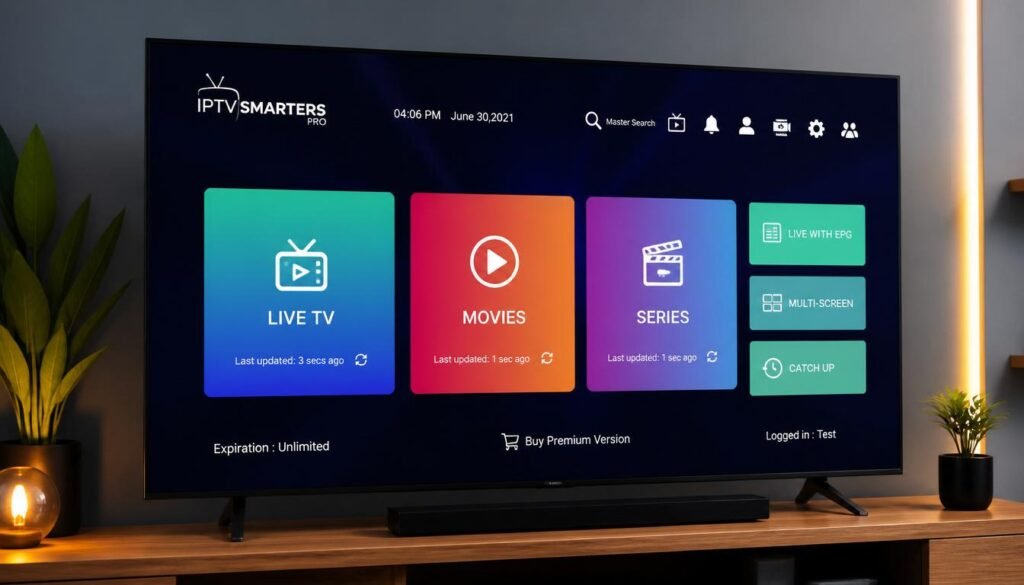
Modern IPTV Smarters Pro interface displayed on a Smart TV, premium streaming dashboard, live channels, movies and series library, ultra realistic, professional UI design, 4K quality, technology blog image
How to Install IPTV Smarters on Firestick
Amazon Firestick remains one of the most popular streaming devices, and installing IPTV Smarters on Firestick is a straightforward process. Follow this step-by-step tutorial carefully.
Prerequisites
Before starting, ensure you have:
- An Amazon Firestick (any generation)
- Active internet connection
- A GO BEST IPTV subscription (or credentials from your provider)
- The Downloader app installed
Step-by-Step Installation Guide
Step 1: Enable Apps from Unknown Sources
- From the Firestick home screen, navigate to Settings
- Select My Fire TV (or Device on older models)
- Click Developer Options
- Turn on Apps from Unknown Sources
- Confirm the warning prompt by selecting Turn On
Note: On newer Firestick interfaces, you may need to click on your device name multiple times to unlock Developer Options.
Step 2: Install the Downloader App
- Return to the Firestick home screen
- Use the search function (magnifying glass icon)
- Type “Downloader” and select it from results
- Click Download or Get
- Wait for installation to complete
Step 3: Download IPTV Smarters Pro
- Open the Downloader app
- In the URL field, enter the direct download link for IPTV Smarters Pro
- The download will begin automatically
- Once downloaded, click Install
- After installation, select Done or Open
Step 4: Launch and Configure
- Find IPTV Smarters Pro in your apps list
- Launch the application
- Accept any necessary permissions
- You’ll see the login screen with options for Xtream Codes API, M3U URL, or local playlist
Step 5: Enter Your Subscription Details
- Select Xtream Codes API (recommended)
- Enter the following details from your GO BEST IPTV subscription:
- Username: Your provided username
- Password: Your provided password
- Server URL: Your provider’s portal URL
- Click Add User
- Wait for the app to load your channels and content
Installation Troubleshooting for Firestick
Table
| Problem | Solution |
|---|---|
| “App not installed” error | Clear cache in Downloader, restart Firestick, try again |
| Download won’t start | Check internet connection, verify URL is correct |
| App crashes on launch | Uninstall and reinstall, ensure sufficient storage |
| Login fails | Double-check credentials, verify subscription is active |
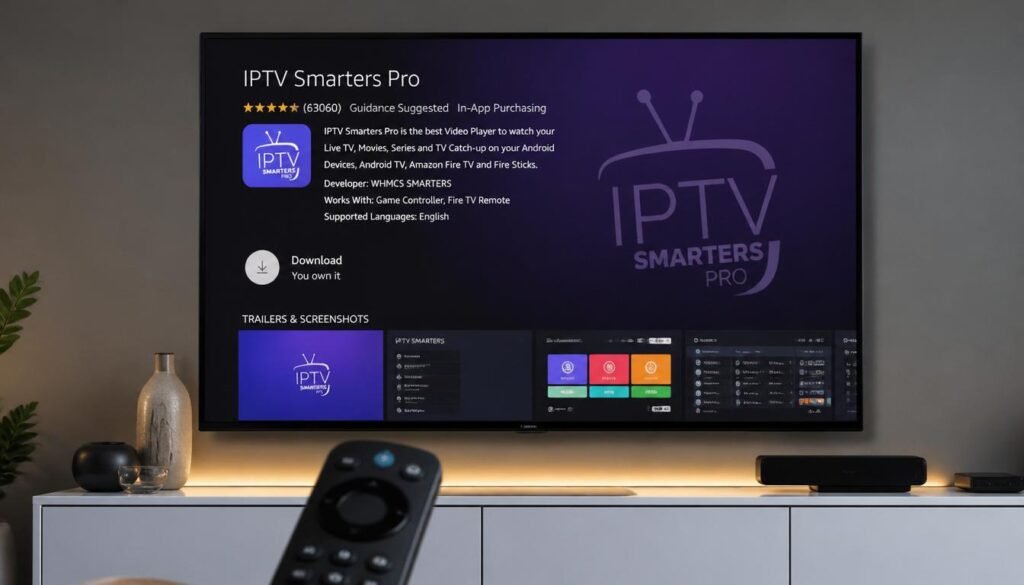
Amazon Firestick connected to television displaying IPTV Smarters app installation screen, modern living room, ultra realistic, 4K technology setup
How to Install IPTV Smarters on Android Devices
Android smartphones, tablets, and TV boxes offer excellent flexibility for IPTV Smarters Android installation. The process varies slightly depending on your specific device.
Method 1: Google Play Store (Recommended)
For Android phones and tablets:
- Open the Google Play Store
- Search for “IPTV Smarters Pro“
- Select the official app by WHMCS SMARTERS
- Tap Install
- Wait for download and installation
- Open the app and proceed to login
Method 2: Direct APK Download (Android TV Boxes)
For Android TV boxes where Play Store access may be limited:
- Open your device’s web browser
- Navigate to the official IPTV Smarters website
- Download the Android APK file
- Go to Settings > Security
- Enable Unknown Sources
- Locate the downloaded APK in your file manager
- Tap to install
- Follow on-screen prompts
Method 3: Aptoide TV (Android TV Devices)
For dedicated Android TV devices:
- Install Aptoide TV from the Play Store or sideload it
- Open Aptoide TV and search for “IPTV Smarters“
- Select and install the app
- Launch from your apps section
Optimizing IPTV Smarters on Android
Once installed, optimize your IPTV Smarters Android experience:
Table
| Setting | Recommended Value | Reason |
|---|---|---|
| Buffer size | Large | Reduces buffering on slower connections |
| Decoder | Hardware | Better performance, less battery drain |
| Aspect ratio | Auto | Matches content to screen |
| EPG update | Every 24 hours | Keeps guide current without excess data |
| Player | Built-in or VLC | VLC for problematic streams |
Android-Specific Tips
- Battery Optimization: Add IPTV Smarters to your battery optimization whitelist to prevent the system from closing it during playback.
- Screen Rotation: Enable auto-rotation for the best viewing experience on tablets.
- External Storage: If recording, ensure you have sufficient internal storage or use an SD card.
- Casting: Use the built-in cast feature to send streams to Chromecast-enabled displays.
How to Install IPTV Smarters on Smart TVs
Modern Smart TVs from Samsung, LG, and Android TV platforms can run IPTV Smarters Smart TV directly, eliminating the need for additional hardware.
Samsung Smart TVs (Tizen OS)
Step 1: Access the App Store
- Press the Smart Hub or Home button on your remote
- Navigate to Apps
- Search for “IPTV Smarters” or “IPTV Smarters Pro“
Step 2: Install the App
- Select the app from search results
- Click Install
- Wait for the installation to complete
- The app will appear in your apps list
Step 3: Configure Your Subscription
- Launch IPTV Smarters
- Select Xtream Codes API
- Enter your credentials from GO BEST IPTV
- Enjoy your channels
LG Smart TVs (WebOS)
Step 1: Access LG Content Store
- Press the Home button
- Navigate to LG Content Store
- Go to the Apps section
Step 2: Search and Install
- Search for “IPTV Smarters“
- Select and install the application
- Launch from the home screen
Step 3: Login and Stream
- Open the app
- Enter your subscription details
- Start watching live TV and VOD content
Android TVs (Sony, TCL, Hisense, etc.)
Step 1: Google Play Store
- Open Google Play Store on your TV
- Search for “IPTV Smarters Pro“
- Install the official app
Step 2: Alternative Sideloading If the app isn’t available in your region’s Play Store:
- Enable Developer Options in TV settings
- Allow apps from unknown sources
- Use a file manager or USB drive to install the APK
Smart TV Optimization Tips
Table
| TV Brand | Best Settings |
|---|---|
| Samsung | Enable Game Mode for lower input lag |
| LG | Use AI Picture Pro for upscaling |
| Sony | Enable Motionflow for smooth playback |
| TCL | Use HDR mode for 4K content |
sandbox:///mnt/agents/output/iptv-smarters-multi-device.webp
IPTV Smarters running simultaneously on Smart TV, Android smartphone, tablet, laptop and Firestick, synchronized streaming experience, premium technology concept
How to Add IPTV Subscription to IPTV Smarters
Adding your subscription to IPTV Smarters is the final step before you can start streaming. This process is universal across all devices.
Method 1: Xtream Codes API (Recommended)
This is the most reliable method and the one we recommend for all GO BEST IPTV customers.
Step 1: Gather Your Credentials When you purchase a subscription from GO BEST IPTV, you’ll receive:
- Username
- Password
- Server/Portal URL
Step 2: Enter Details in the App
- Open IPTV Smarters Pro
- On the login screen, select Xtream Codes API
- Enter a name for your profile (e.g., “GO BEST IPTV”)
- Input your username
- Input your password
- Enter the server URL exactly as provided
- Click Add User
Step 3: Wait for Loading The app will now:
- Authenticate your credentials
- Download your channel list
- Load VOD movies and series
- Fetch EPG data
This may take 1-3 minutes depending on your internet speed and the size of your subscription package.
Method 2: M3U URL
If your provider gives you an M3U link:
- Select Load Your Playlist or File/URL
- Choose Allow
- Enter the M3U URL provided
- Click Add User
Method 3: Local File
For backup playlists:
- Save the M3U file to your device
- Select Load Your Playlist or File/URL
- Choose File
- Browse to your saved file
- Select and load
Post-Login Configuration
After successfully adding your subscription, customize your experience:
Table
| Setting | Recommendation |
|---|---|
| Channel sorting | By category |
| EPG time offset | Match your timezone |
| Player selection | Built-in for most content |
| Buffer size | Large for unstable connections |
| Auto-update EPG | Daily |
Common IPTV Smarters Problems and Solutions
Even the best apps encounter issues. Here are the most common IPTV Smarters problems and their solutions.
Problem 1: Buffering and Freezing
Symptoms: Video pauses frequently, spinning loading circle appears
Solutions:
- Check internet speed — You need at least 10 Mbps for HD, 25 Mbps for 4K
- Reduce stream quality — Go to settings and lower the default resolution
- Increase buffer size — Settings > Player > Buffer Size > Large
- Use a VPN — Some ISPs throttle IPTV traffic
- Switch servers — Contact GO BEST IPTV support for alternative server URLs
Problem 2: “Authentication Failed” or “User/Password Incorrect”
Symptoms: Cannot log in, error messages on startup
Solutions:
- Double-check credentials — Ensure no extra spaces or typos
- Verify subscription status — Confirm your subscription is active at GO BEST IPTV
- Check server URL — Make sure the portal URL is entered exactly as provided
- Case sensitivity — Usernames and passwords are case-sensitive
- Contact support — Reach out via our contact page if issues persist
Problem 3: EPG Not Loading or Showing “No Information”
Symptoms: Program guide is empty or shows “No Information”
Solutions:
- Manual EPG update — Go to Settings > EPG > Update EPG
- Check EPG URL — Verify your provider includes EPG data
- Time zone settings — Ensure your device’s time zone is correct
- Clear app cache — Settings > Apps > IPTV Smarters > Clear Cache
- Re-add user — Sometimes removing and re-adding your profile fixes EPG issues
Problem 4: Audio/Video Out of Sync
Symptoms: Sound doesn’t match lip movements
Solutions:
- Restart the stream — Stop and restart the channel
- Switch audio track — Some channels have multiple audio options
- Change decoder — Settings > Player > Decoder > Try Software or Hardware
- Use external player — VLC often handles sync issues better
Problem 5: App Crashes or Won’t Open
Symptoms: App closes immediately or freezes on launch
Solutions:
- Force stop and restart — Device settings > Apps > IPTV Smarters > Force Stop
- Clear cache and data — Warning: This removes saved settings
- Reinstall the app — Uninstall and download fresh
- Check device storage — Ensure you have at least 500 MB free
- Update device firmware — Outdated OS can cause compatibility issues
Problem 6: Specific Channels Won’t Load
Symptoms: Most channels work, but some show black screen or error
Solutions:
- Channel maintenance — The channel may be temporarily down
- Server overload — Try again during off-peak hours
- Codec issue — Switch to external player like VLC
- Regional blocking — Some channels may be geo-restricted
Quick Troubleshooting Reference Table
Table
| Issue | First Try | Second Try | Last Resort |
|---|---|---|---|
| Buffering | Lower quality | Increase buffer | Contact ISP/provider |
| Login failed | Recheck credentials | Re-add user profile | Contact support |
| No sound | Check volume/mute | Switch audio track | Reinstall app |
| Black screen | Change channel back | Switch decoder | Use external player |
| EPG missing | Update EPG manually | Check timezone | Clear app data |
Why IPTV Smarters Is Popular Among IPTV Users
The popularity of IPTV Smarters isn’t accidental. Several key factors have made it the preferred choice for millions of IPTV subscribers worldwide.
1. Universal Compatibility
IPTV Smarters works on virtually every modern device. Whether you have a Firestick, Android phone, iPhone, Smart TV, Windows PC, or Mac, there’s a version of the app for you. This cross-platform availability means users aren’t locked into a single ecosystem.
2. Clean, Intuitive Interface
Unlike many IPTV players that look outdated or confusing, IPTV Smarters Pro offers a modern, Netflix-like interface. Categories are clearly organized, search functionality is robust, and the overall user experience feels premium.
3. Feature-Rich Free Version
While the Pro version offers advanced features, the free version of IPTV Smarters is surprisingly capable. Users can access live TV, VOD, and basic EPG without spending a dime, making it accessible to everyone.
4. Regular Updates
The development team behind IPTV Smarters consistently releases updates that improve performance, add features, and fix bugs. This ongoing support ensures the app remains compatible with the latest devices and operating systems.
5. Strong Community Support
With millions of users worldwide, finding help for IPTV Smarters is easy. Online forums, Reddit communities, and YouTube tutorials provide endless resources for troubleshooting and optimization.
6. Provider Flexibility
IPTV Smarters doesn’t lock you into a specific provider. You can use it with GO BEST IPTV today and switch providers tomorrow without changing your app or learning a new interface.
7. Advanced Features for Power Users
Features like multi-screen viewing, recording, and external player support cater to power users who demand more from their streaming setup. These features are typically absent from basic IPTV players.
8. Family-Friendly Options
With multi-user profiles and parental controls, IPTV Smarters is ideal for families. Parents can create restricted profiles for children while maintaining full access on their own profiles.
Why Choose GO BEST IPTV with IPTV Smarters
Now that you understand how IPTV Smarters works, the next critical decision is choosing the right IPTV provider. GO BEST IPTV has established itself as a leader in the IPTV industry, and here’s why our service pairs perfectly with IPTV Smarters Pro.
Premium Channel Selection
GO BEST IPTV offers an extensive lineup that includes:
- 15,000+ Live TV Channels from around the world
- Premium sports packages including NFL, NBA, NHL, MLB, UFC, and international football
- Movie channels in multiple languages
- News networks from every major country
- Entertainment and lifestyle channels
- Kids and family programming
- Music and radio stations
Stable, Reliable Streaming
Nothing ruins a streaming experience like constant buffering or downtime. At GO BEST IPTV, we invest heavily in server infrastructure to ensure:
- 99.9% uptime guarantee
- Load-balanced servers to prevent overload during peak hours
- Multiple server locations for optimal routing
- Anti-freeze technology for smooth playback
HD, Full HD & 4K Quality
We believe quality matters. Our streams are available in:
Table
| Resolution | Availability | Best For |
|---|---|---|
| SD (480p) | All channels | Slow connections |
| HD (720p/1080p) | Most channels | Standard viewing |
| Full HD (1080p) | Popular channels | Large screens |
| 4K UHD | Select channels/events | Premium experience |
Sports & Movies Focus
Sports fans and movie buffs will find GO BEST IPTV particularly appealing:
- Live sports with multiple backup streams for major events
- Pay-per-view events included at no extra cost
- Movie library with thousands of titles updated weekly
- TV series with complete seasons and new episodes added daily
- Catch-up TV for programs you missed
Fast, Professional Support
Our support team is available to help you with:
- 24/7 live chat for urgent issues
- Email support for detailed inquiries
- Setup guides for all major devices
- Remote assistance when needed
Visit our contact page anytime you need help.
Affordable Pricing
Premium IPTV doesn’t have to break the bank. Check our pricing page for competitive rates that offer exceptional value compared to traditional cable or satellite services.
Compatibility Guarantee
Every GO BEST IPTV subscription is fully tested and guaranteed to work with IPTV Smarters Pro. We provide:
- Xtream Codes API credentials
- Detailed setup instructions
- M3U backup links
- EPG URL for program guides
sandbox:///mnt/agents/output/iptv-smarters-gobest.webp
Premium IPTV service running through IPTV Smarters app, thousands of channels, sports streaming, movies and series, professional streaming environment, luxury entertainment concept, 4K ultra HD
Frequently Asked Questions
1. Is IPTV Smarters free to use?
Yes, the base version of IPTV Smarters is free to download and use. However, IPTV Smarters Pro requires a one-time purchase or subscription fee, which unlocks advanced features like multi-screen support, recording, and external player integration. Remember that while the app is free, you still need an active IPTV subscription from a provider like GO BEST IPTV to access content.
2. Can I use IPTV Smarters without an IPTV subscription?
No. IPTV Smarters is a player application, not a content provider. It requires valid login credentials from an IPTV service. Without a subscription, the app will have no channels or content to display. You can purchase a reliable subscription from GO BEST IPTV.
3. Is IPTV Smarters legal?
IPTV Smarters itself is completely legal. It’s a legitimate media player application available on official app stores. The legality depends on the IPTV service you use. Always choose reputable providers like GO BEST IPTV that operate within legal frameworks and licensing agreements.
4. Why is my IPTV Smarters buffering so much?
Buffering usually stems from three causes: insufficient internet speed, server overload, or ISP throttling. First, test your connection speed — you need at least 10 Mbps for HD streaming. If your speed is adequate, try increasing the buffer size in IPTV Smarters settings. If problems persist, contact your provider’s support or consider using a VPN to bypass potential throttling.
5. How do I update IPTV Smarters?
On Android and iOS devices, updates come through the Google Play Store or App Store. For Firestick and sideloaded versions, you’ll need to uninstall the current version and install the latest APK. Always back up your settings before updating to avoid reconfiguring your subscription details.
6. Can I use IPTV Smarters on multiple devices?
Yes, but this depends on your IPTV subscription plan. IPTV Smarters Pro supports multiple user profiles, but your provider determines how many simultaneous connections are allowed. GO BEST IPTV offers various plans with different connection limits to suit your household needs.
7. What’s the difference between IPTV Smarters and IPTV Smarters Pro?
IPTV Smarters Pro includes premium features not available in the free version: multi-screen viewing (up to 4 channels), recording capability, external player support, advanced parental controls, Chromecast support, picture-in-picture mode, and an ad-free experience. For serious streamers, the Pro version is highly recommended.
8. How do I add EPG to IPTV Smarters?
If your provider includes EPG data (like GO BEST IPTV does), it loads automatically when you log in with Xtream Codes API. For M3U users, you may need to manually enter an EPG URL in Settings > EPG > Add EPG. Ensure your device’s timezone is correct for accurate program listings.
9. Why do some channels show a black screen?
A black screen typically indicates a codec incompatibility or a temporarily offline channel. Try switching to an external player like VLC (available in IPTV Smarters Pro), or wait a few minutes and retry. If the issue persists across multiple channels, check your internet connection and subscription status.
10. How do I record shows on IPTV Smarters?
Recording is available exclusively in IPTV Smarters Pro. During live playback, press the record button (usually a red circle icon) or access recording options through the menu. Recordings are saved to your device’s internal storage, so ensure you have sufficient space available. Note that recording capabilities also depend on whether your IPTV provider permits it.
Conclusion
IPTV Smarters has rightfully earned its place as one of the most trusted and capable IPTV applications available in 2026. Its combination of user-friendly design, robust feature set, and universal device compatibility makes it the ideal choice for anyone looking to cut the cord and embrace internet-based television.
From installing IPTV Smarters on Firestick to configuring it on your Android phone or Smart TV, this guide has covered every step you need to get started. We’ve explored the powerful features of IPTV Smarters Pro, walked through common troubleshooting scenarios, and explained why this app continues to dominate the IPTV landscape.
However, even the best player is only as good as the content it streams. That’s where GO BEST IPTV comes in.
Ready to Transform Your Streaming Experience?
Don’t settle for unreliable IPTV services with constant buffering and limited channels. At GO BEST IPTV, we provide:
✅ 15,000+ Premium Channels from every corner of the globe
✅ Stable, Buffer-Free Streaming with 99.9% uptime
✅ Crystal Clear Quality in HD, Full HD, and 4K
✅ Live Sports & PPV Events at no extra cost
✅ Massive VOD Library with movies and TV series
✅ 24/7 Expert Support whenever you need help
Whether you’re a sports fanatic, movie lover, or just want reliable access to your favorite channels, we have the perfect subscription plan for you.
👉 Visit GO BEST IPTV today and start your premium IPTV journey!
👉 Check Our Pricing and find a plan that fits your budget!
👉 Contact Our Team if you have any questions — we’re here to help!
Don’t wait. Join thousands of satisfied customers who have already made the switch to better streaming. Your ultimate entertainment experience with IPTV Smarters and GO BEST IPTV starts now!
💬 Talk to a Real HumanAbout Us — Right Now
| Contact Method | Link | Best For |
|---|---|---|
| 👉 Chat Now | Fast setup help, instant answers | |
| ✉️ support@gobestiptv.com | Detailed questions, documentation | |
| 🌐 Website | 🔗 gobestiptv.com | Plans, channel list, FAQs |